An organized inbox is not about reaching zero unread messages every day. It is about being able to find what matters quickly, without important messages getting lost among receipts, notifications and promotions. The best systems are simple enough to keep up with when you are busy, and they work by reducing how much reaches you as much as by sorting what does.
Start by reducing what arrives
Organization is far easier when there is less to organize. Before building folders and filters, cut the volume:
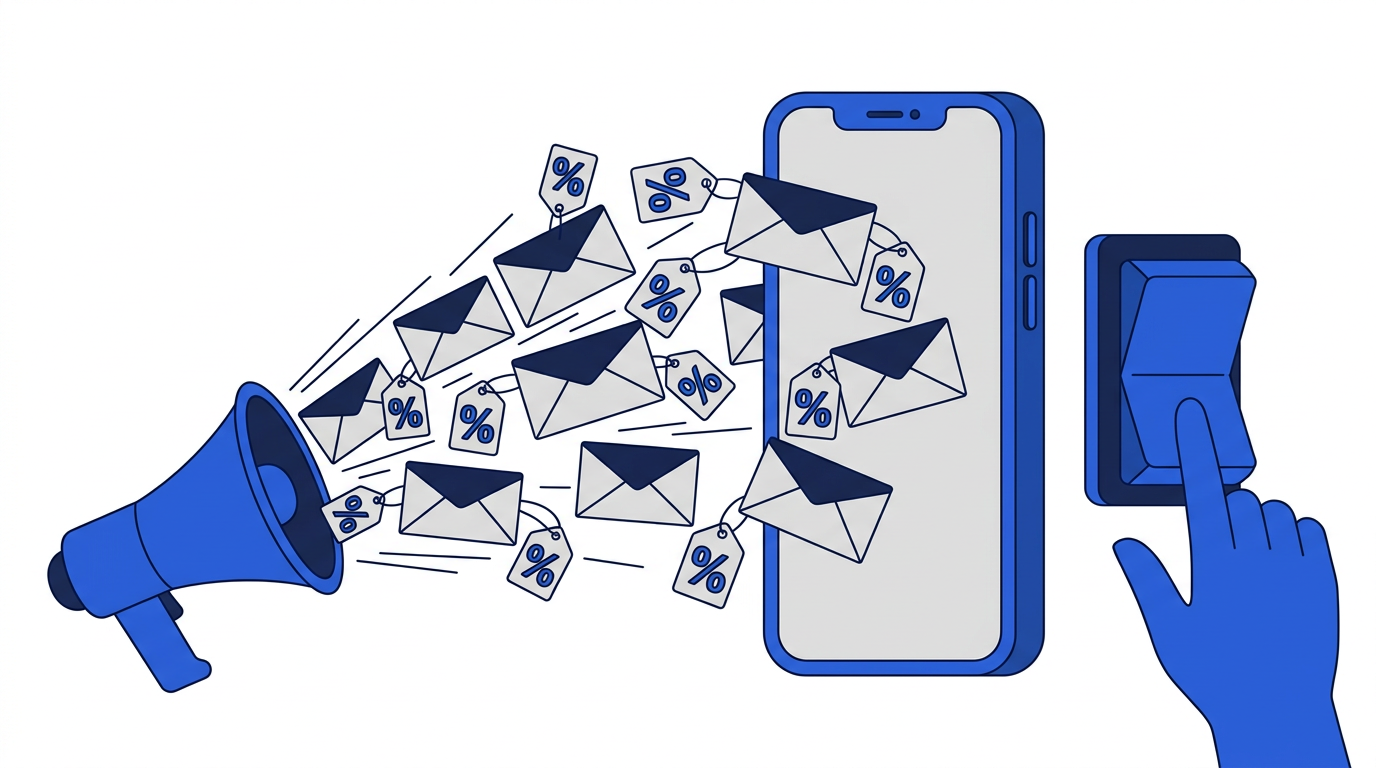
- Unsubscribe from newsletters and promotions you no longer read. See how to reduce unwanted marketing emails.
- Turn off email notifications from apps and social networks that also notify you in the app.
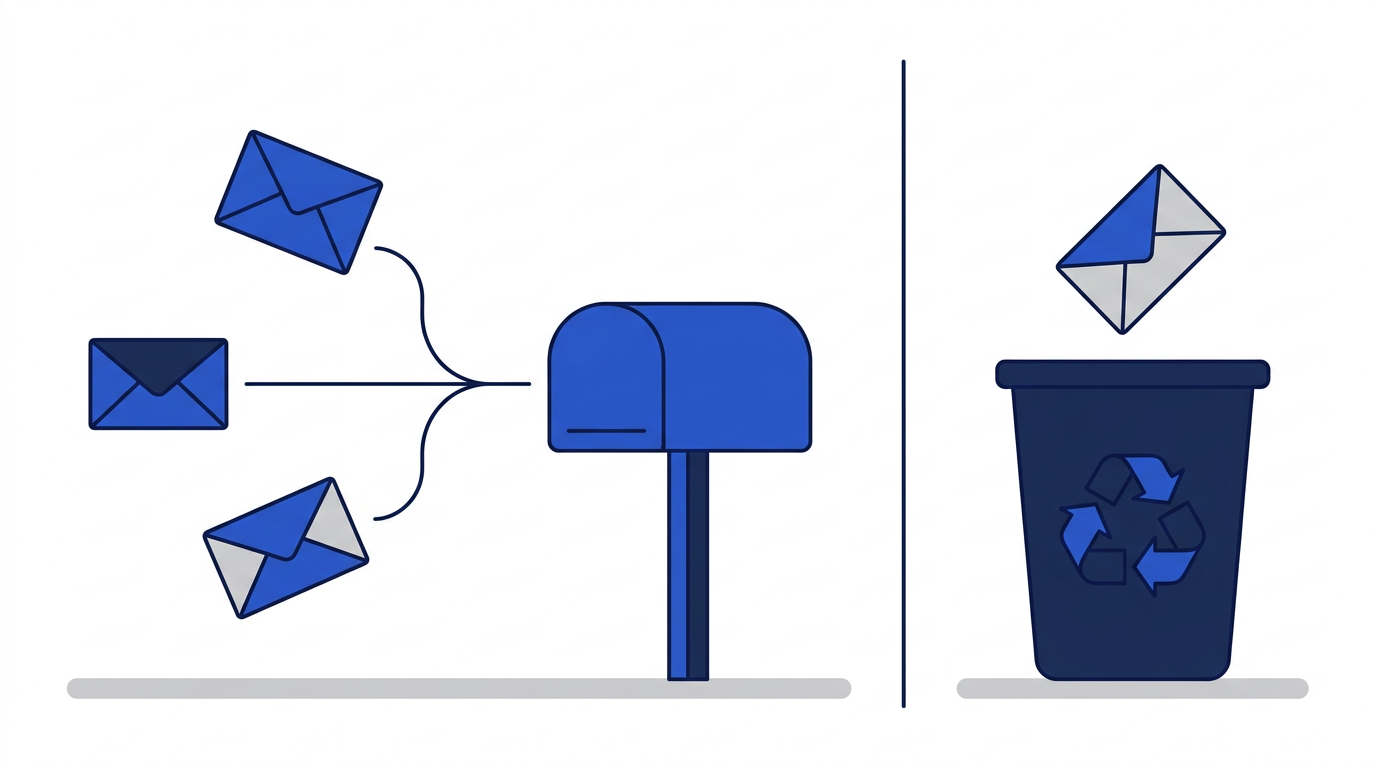
- Use a temporary email for one-time downloads, Wi-Fi portals and trials so they never reach your main inbox.
- Use aliases for services you keep but want separated, so you can filter or switch them off easily.
- Report spam rather than deleting it, so your provider learns what to block.
Use a few folders, not many
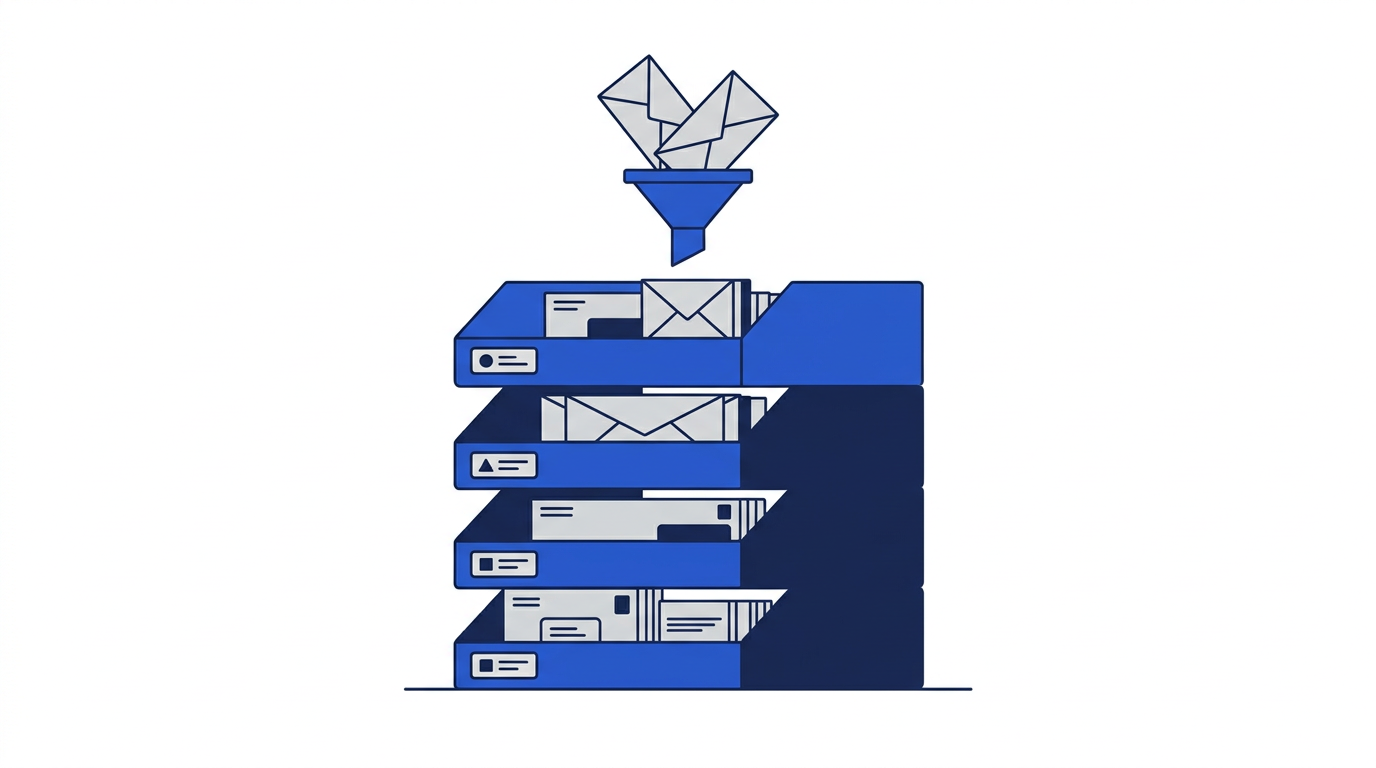
Elaborate folder trees feel organized but take time to maintain and make it harder to decide where things go. Search is fast and reliable in modern email apps, so most people only need a handful of folders or labels:
- Action: messages that need a reply or task from you.
- Waiting: things you are waiting on from someone else.
- Receipts: orders, bills and confirmations.
- Reading: newsletters you want to read later.
- Archive: everything else you have dealt with.
Let filters do the sorting
Filters, sometimes called rules, automatically act on messages as they arrive. Set them up once and they quietly keep your inbox clear. Useful examples include:
- Send newsletters straight to a Reading folder, skipping the inbox.
- Label receipts and order confirmations and archive them automatically.
- Mark notifications from certain services as read.
- Highlight messages from important people or your workplace.
- Route mail sent to a specific alias into its own folder.
Process email in batches
Checking email constantly fragments your attention. Set two or three times a day to process your inbox, and turn off notifications for everything except truly urgent senders. When you sit down to process, go through messages from top to bottom and make a quick decision for each one.
- 1If it takes less than two minutes, deal with it now.
- 2If it needs more time, move it to Action.
- 3If you are waiting on someone, move it to Waiting.
- 4If it is just information, archive it.
- 5If you do not need it at all, delete or unsubscribe.
Keep your main address for what matters
Your main email address works best when it is reserved for people and services you actually care about: family, friends, work, your bank and a few trusted accounts. Every time you give it to a website you will only visit once, you invite clutter. Using a disposable address for those moments is one of the simplest ways to keep your inbox calm long term. Read 10 benefits of using a disposable email address for more on this.
Do a monthly reset
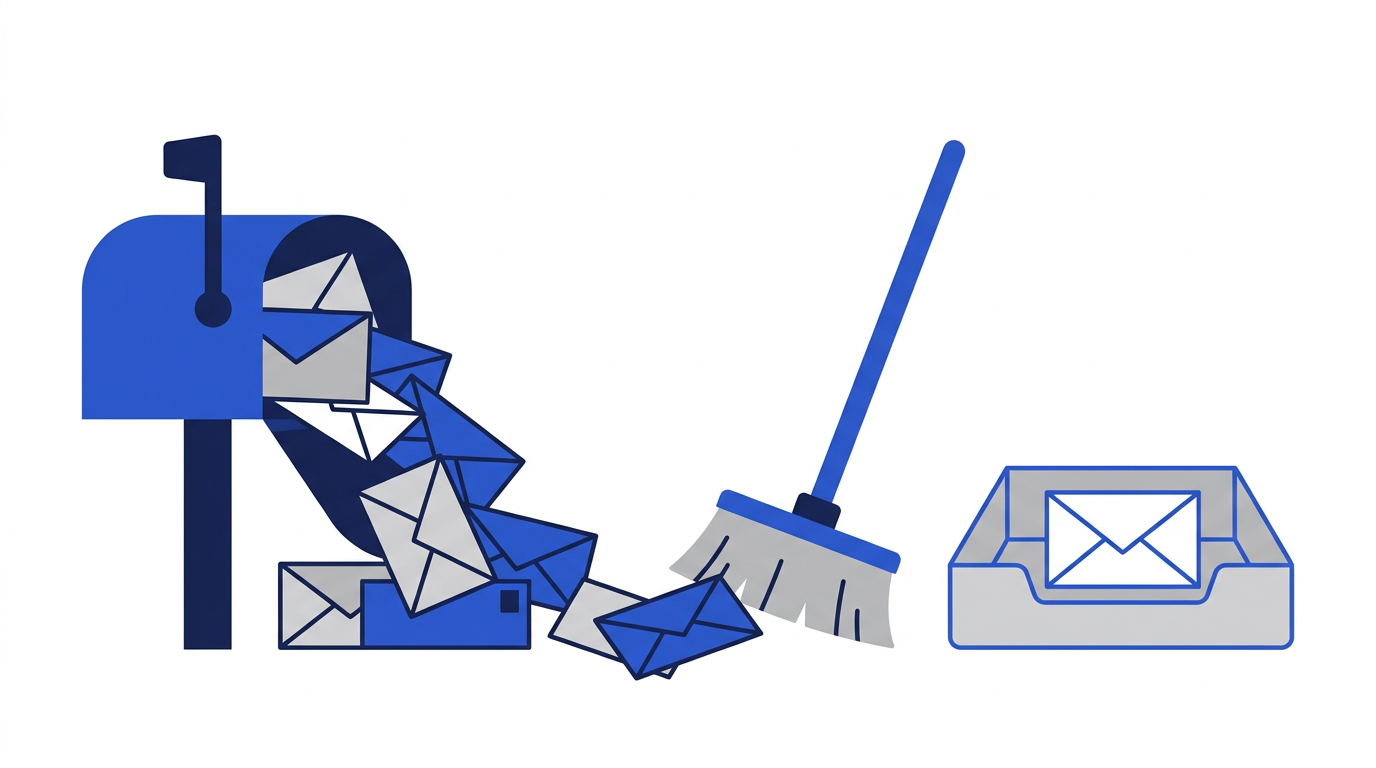
Once a month, spend fifteen minutes on maintenance. Unsubscribe from anything new that has crept in, check your filters still work, clear out your Action and Waiting folders, and archive everything older than a few weeks that is still sitting in the inbox. This small habit stops clutter from building up again.
Protect the inbox you have organized
An organized inbox is also easier to keep secure, because unusual messages stand out. Use a strong, unique password and two-factor authentication for your email account, and learn the warning signs in how to recognize phishing emails.
Frequently asked questions
How many folders should my inbox have?
Most people do well with four or five folders or labels, combined with search. Too many folders make filing slow and inconsistent.
Is inbox zero necessary?
No. The goal is to find important messages quickly and not miss anything. An inbox with a few dozen dealt-with messages can still be well organized.
How can I stop my inbox filling up again?
Reduce what arrives: unsubscribe regularly, use temporary email for one-time sign-ups, use aliases for services you keep, and let filters handle routine mail.